Splitting Invoices with Multiple Pages
Written By Stefan S.
Last updated 7 months ago
Learn how to split large invoices into multiple smaller ones using this step-by-step guide. This process is useful when dealing with multi-page invoices that need to be divided for easier management.
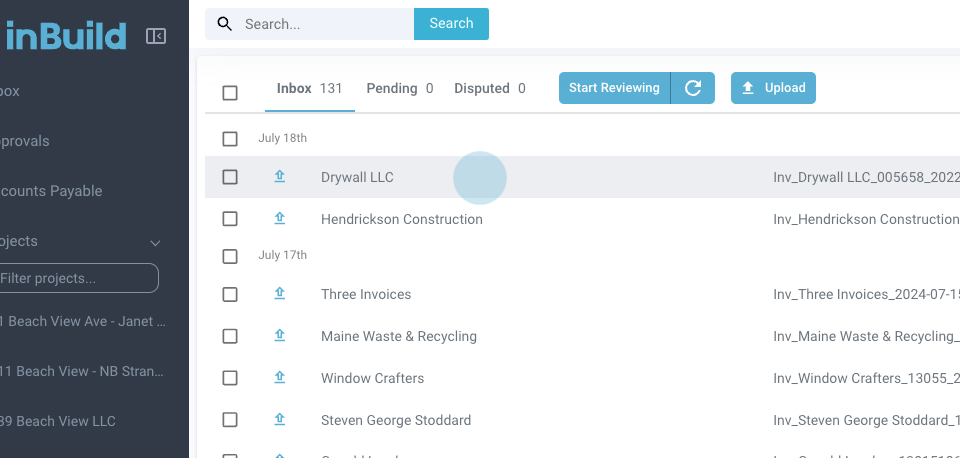
Step 1: Select the invoice to split.
Step 2: Notice the AI has already extracted all the information from the first invoice. Scroll to find the total number of pages in the invoice.
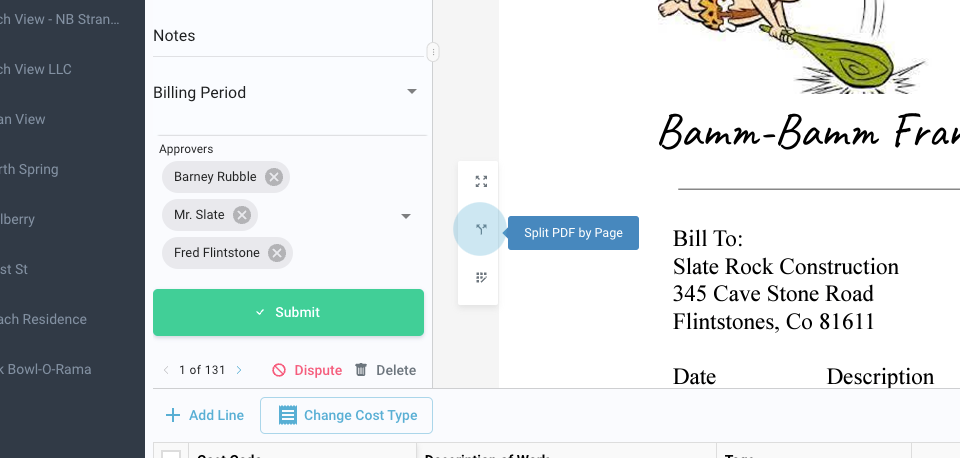
Step 3: Click on Split PDF by page to initiate the splitting process.
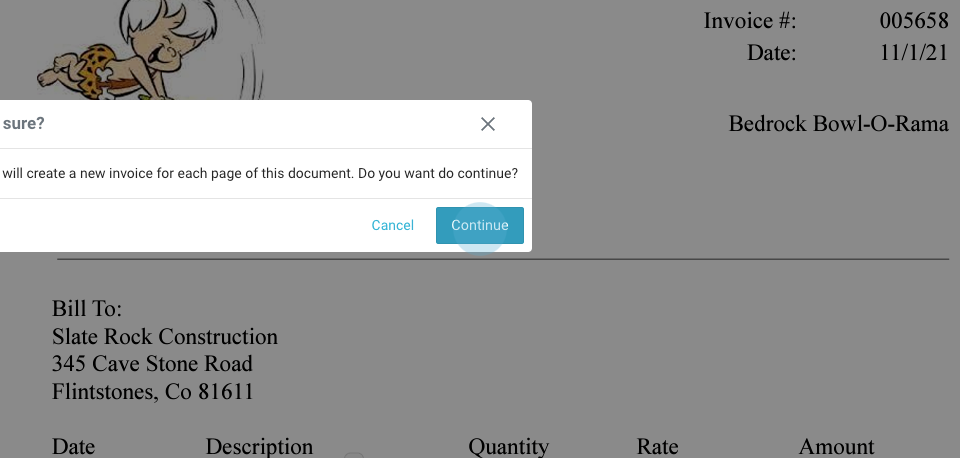
Step 4: Confirm the action by clicking Continue when the system prompts, "Are you sure you want to do so?"
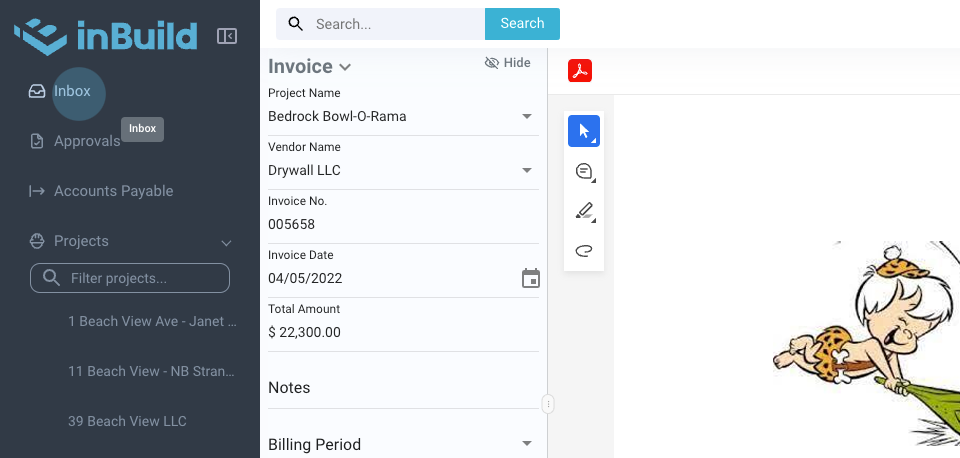
Step 5: Wait for a moment. A notification will appear confirming the successful split of the invoice into the chosen documents.
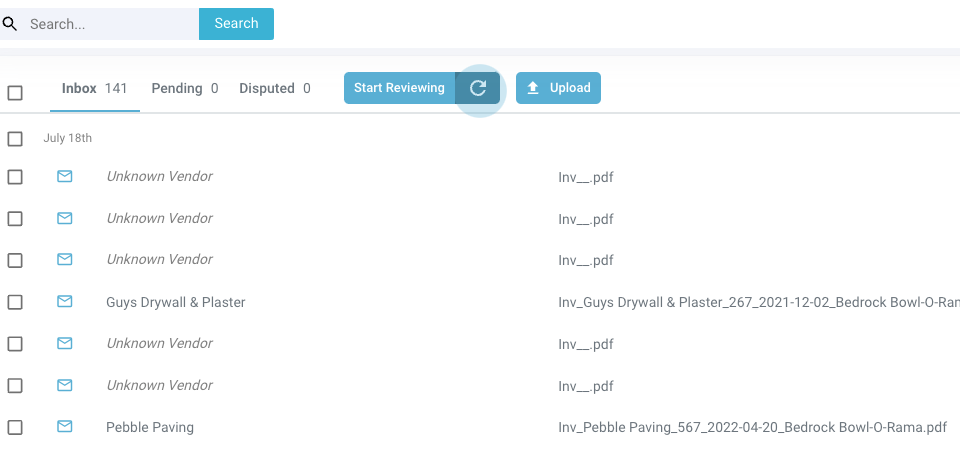
Step 6: Return to the inbox to view the split invoices. The system will start capturing all the information for these documents.
Step 7: Click Refresh to update the information as the system processes the new invoices.
This method provides a quick and efficient way to manage large invoices. If there are any further questions, please do let us know and we will answer them as soon as we can.
Was this helpful?
Still need help? Ask the team